
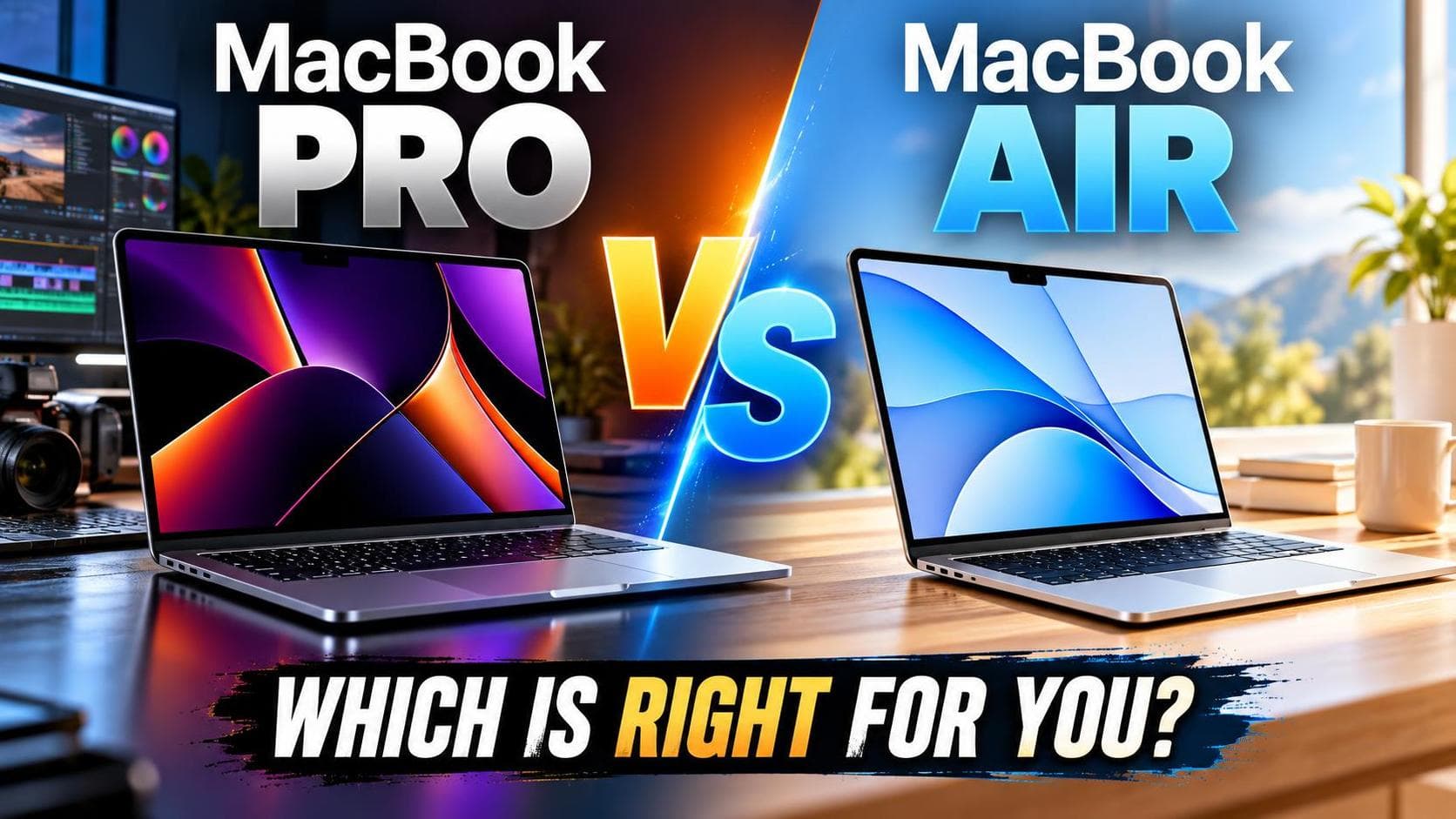
TL;DR: The MacBook Air suits everyday users who want a lightweight, affordable laptop for browsing, writing, and light photo editing. The MacBook Pro is built for professionals running demanding tasks like video editing, coding, or 3D rendering, thanks to its more powerful chip, better cooling system, and higher-end display. Choose the Air for portability and value, or the Pro for raw performance.
Choosing between the MacBook Pro and MacBook Air isn't as simple as picking the more expensive option. Apple designed each machine for a specific purpose, and picking the wrong one could mean overpaying for power you'll never use or underbuying and hitting performance walls sooner than expected.
Whether you're a student choosing your first Apple MacBook, a creative professional upgrading from a 2019 model, or someone eyeing a refurbished MacBook to save some cash, understanding the real differences between these two laptop lines will help you spend your money wisely. This guide breaks down performance, design, display quality, and price so you can decide which MacBook actually fits your workflow.
What's the Difference Between MacBook Pro and MacBook Air?
The core difference comes down to performance and cooling. The MacBook Air uses a fanless design, which keeps it quiet and slim but limits how long it can sustain heavy workloads before throttling. The MacBook Pro includes an active cooling system with fans, permitting it to handle sustained, intensive tasks like video rendering or large codebase compiling without slowing down.
Both lines now run on Apple Silicon, including the M1, M2, and M3 chip families. While entry-level Air and Pro configurations can perform similarly for common tasks, the Pro's higher-tier chip options (like the M3 Pro and M3 Max) offer significantly more CPU and GPU cores, making it the better choice for demanding creative or technical work.
Which Laptop Has Better Battery Life?
The MacBook Air typically edges out the Pro in power performance for light tasks, largely because it doesn't need to power cooling fans or a higher-brightness display. However, Apple's own estimates put both machines in a similar range for typical use, often between 15 to 18 hours depending on the model and workload. If you're constantly running demanding applications, the Pro's battery will drain faster than its stated estimate because the chip is working harder.
How Do the Displays Compare?
This is one of the most noticeable differences between the two lines. The MacBook Pro (14-inch and 16-inch models) features a Liquid Retina Pro display with ProMotion technology, supporting adaptive refresh rates up to 120Hz and significantly higher peak brightness. This matters for video editors, photographers, and anyone doing color-critical work.
The MacBook Air's display is a solid Liquid Retina panel, sharp and color-accurate for everyday use, but it lacks ProMotion and the extended dynamic range the Pro offers. For general browsing, writing, and streaming, most users won't notice the difference. For professional visual work, the Pro's display is a meaningful upgrade.
Which Ports and Features Does Each Model Include?
The MacBook Pro includes a more generous port selection, typically featuring HDMI, an SD card slot, and MagSafe charging alongside Thunderbolt ports, which reduces the need for a dongle collection. The MacBook Air keeps things minimal, usually offering two Thunderbolt/USB 4 ports and a MagSafe charging port.
If you frequently connect external monitors, cameras, or storage drives, the Pro's port variety will save you time and hassle. If your workflow revolves around wireless peripherals and cloud storage, the Air's simpler setup won't hold you back.
Should You Buy a New, Refurbished, or Older MacBook?
Budget plays a major role in this decision, and Apple's lineup gives you several ways to save.
Choose a new MacBook Pro or Air if you want the latest chip, the longest software support window, and full warranty coverage. This is the safest option if you plan to keep the laptop for five or more years.
Choose a refurbished MacBook if you want near-new performance at a reduced price. Apple's certified refurbished units go through a full inspection process, come with a new battery and outer shell when needed, and include a standard one-year warranty, rendering them a genuinely low-risk way to save money.
Choose an older model, like a MacBook Pro 2019 or MacBook Air 2018, if your budget is tight and your needs are basic. Just be aware that older Intel-based models won't match the battery life or performance of Apple Silicon machines, and they'll eventually fall out of macOS update support sooner.
Which MacBook Size Should You Choose?
Apple currently offers the MacBook Air in 13-inch and 15-inch sizes, while the MacBook Pro comes in 14-inch and 16-inch options.
13-inch MacBook Air: Best for portability-focused users who favor a lightweight daily carry.
14-inch MacBook Pro: A balance of portability and power, suited to professionals who travel but still need serious performance.
16-inch MacBook Pro: Ideal for users who want a larger screen for multitasking and creative work and don't mind the extra weight.
Common MacBook Tasks Worth Knowing
Once you've chosen your MacBook, a few everyday skills will make life easier.
How Do You Screenshot on a MacBook?
Press Shift + Command + 3 to capture the entire screen, or Shift + Command + 4 to select a specific area. Screenshots save directly to your desktop by default.
How Do You Connect AirPods to a MacBook?
Open the lid of your AirPods case near your MacBook, then go to System Settings > Bluetooth, select your AirPods from the list, and click Connect. Once paired, they'll reconnect automatically whenever they're nearby and open.
How Do You Factory Reset a MacBook?
On Apple Silicon models, go to System Settings > General > Transfer or Reset, then select Erase All Content and Settings. This wipes your data and restores factory settings, which is useful before selling, trading in, or troubleshooting persistent software issues.
Making Your Final Decision
If you spend most of your day writing, browsing, video calling, or managing spreadsheets, the MacBook Air will handle it all while saving you money and weight in your bag. If your work involves video editing, software development, 3D design, or any task that pushes your CPU and GPU for extended periods, the MacBook Pro's cooling system and display will pay off over time.
Before buying, think honestly about your workload eighteen months from now, not just today. A MacBook bought slightly ahead of your needs will serve you longer than one bought to match them exactly.
Frequently Asked Questions
Is the MacBook Air powerful enough for programming?
Yes, for most students and app developers, the MacBook Air's M-series chip handles coding, compiling, and running simulators comfortably. Only those working with large-scale builds or resource-heavy development environments will benefit from the Pro's extra cooling and performance headroom.
How much does MacBook repair typically cost?
Costs vary widely depending on the issue and whether you use Apple or a third-party repair shop. Battery replacements and screen repairs are among the most common services, and searching for "MacBook repair near me" can help you compare local pricing against Apple's official rates.
Is a refurbished MacBook a safe purchase?
Yes, when you buy one directly from Apple's Certified Refurbished store. These units are tested, include new batteries where needed, and carry the same one-year warranty as a new MacBook, unlike third-party refurbished sellers whose quality can vary.
Can I upgrade the RAM or storage on a MacBook later?
No. Since the shift to Apple Silicon, RAM is integrated into the chip itself, and storage is soldered to the logic board on most models. This means you should choose your configuration carefully at checkout, since you can't upgrade it afterward.
Does the MacBook Air support external monitors?
Yes, the MacBook Air supports one external display, while the MacBook Pro supports multiple external displays depending on the model. If multi-monitor setups are essential to your workflow, the Pro offers more flexibility.