
A dual monitor setup expands screen space and helps people work more efficiently. It allows them to view documents side by side, keep communication tools visible, or spread out creative projects without constant window switching. For many office workers, programmers, designers, and remote employees, adding a second display improves focus and reduces time spent navigating between tabs.
Dual monitors come in several forms, including two matching standalone monitors or a single ultrawide display that functions like two screens. Buyers should pay close attention to screen size, resolution, panel type, and connectivity options, as well as bezel thickness and adjustability for comfortable alignment. The best dual monitor setup offers sharp resolution, consistent color, flexible positioning, and enough connectivity to support a user’s daily workflow without compromise.
Price also varies widely, so shoppers should balance performance needs with desk space and graphics hardware capabilities. We researched and compared leading dual monitor options to identify the setups that deliver reliable performance and practical features for most people.
Best Dual Monitor Setups
Below is the full list of the best dual monitor options for work, gaming, and multitasking. Each pick offers reliable performance, strong display quality, and practical features to support productivity and daily use. They selected models that balance resolution, refresh rate, connectivity, and overall value.
Kado 27″ Curved Dual Monitor Set

This dual monitor bundle suits buyers who want an affordable, curved setup that improves multitasking without overcomplicating installation.
Pros
- Curved screens create a seamless side‑by‑side view
- Clear color and smooth motion for daily work and gaming
- Built-in speakers reduce desk clutter
Cons
- Built-in audio sounds average, not room-filling
- Brightness may need adjustment out of the box
- Limited to standard full HD resolution
After setting up the Kado 27″ curved pair, the workspace immediately felt more organized. The slim bezels and matching curve help both screens blend into one wide visual field, which makes spreadsheets, timelines, and multiple browser windows easier to manage.
The 1500R curve reduces the need to turn the neck as much during long sessions. They remain comfortable during full workdays, and the matte finish cuts glare under typical office lighting.
Motion looks smooth during casual gaming and video playback. Fast transitions appear clean, and colors look balanced for general editing tasks. It handles everyday gaming and productivity without distraction.
Built-in speakers keep the desk tidy, though most users will still prefer headphones or external speakers for fuller sound. Overall, the pair delivers solid performance and convenience for anyone building a clean dual-monitor setup at home or in a small office.
ViewSonic VA2456A-MHD Dual 24” Monitors

These monitors suit professionals who want an affordable dual-screen setup with clean visuals and flexible connectivity.
Pros
- Thin bezels create a seamless side-by-side layout
- IPS panel keeps colors consistent across both screens
- Multiple input options support older and newer devices
Cons
- No stands included in the dual pack
- Built-in speakers are absent
- Some users may need to fine-tune sharpness settings
Setting up the pair felt straightforward. He mounted both panels on a VESA arm, and the slim bezels made the two screens appear almost continuous. The head-only design keeps the package simple, but buyers must plan for their own mounting solution.
Color accuracy looks consistent from edge to edge. When he moved between screens, brightness and tone matched closely, which matters during spreadsheet work and light photo editing. Text appears crisp after basic calibration, and the matte finish reduces glare under office lighting.
The higher refresh rate makes scrolling smoother than many standard office displays. During long work sessions, the flicker-free mode and blue light filter reduce eye strain, especially in the evening.
Connectivity stands out in daily use. It connects easily to laptops, desktops, and even older systems without adapters, which adds flexibility for mixed work environments.
Overall, this dual pack delivers a practical, clean-looking setup for home offices and business desks without unnecessary extras.
HP Series 3 Pro 24″ Dual Monitor 2-Pack
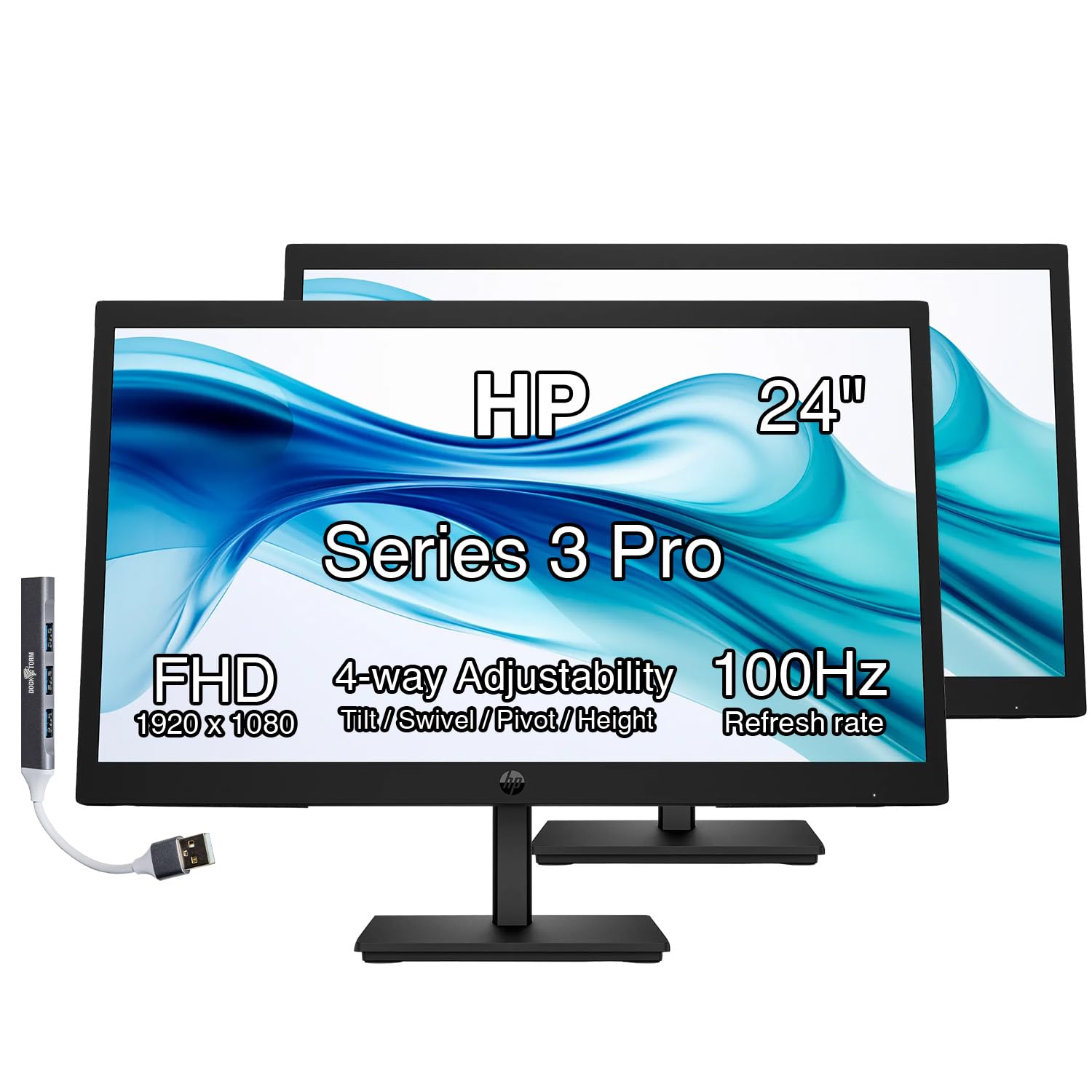
A smart buy for anyone who wants a clean, adjustable dual‑monitor setup for work or study without paying for features they will not use.
Pros
- Smooth 100Hz refresh makes scrolling and multitasking feel fluid
- IPS panel keeps colors consistent from side angles
- Fully adjustable stand with tilt, swivel, and pivot
Cons
- Brightness is adequate but not ideal for very bright rooms
- Built-in speakers sound thin for media use
- No USB-C connectivity
After setting up both screens side by side, the desk instantly felt more organized and productive. The slim three-sided bezels keep the gap between monitors minimal, which makes spreadsheets and timelines easier to scan across both panels.
Text appears sharp and stable during long writing sessions. The 100Hz refresh rate reduces the slight blur and jitter common on basic office monitors, and scrolling through documents feels smoother than standard 60Hz displays.
Color stays consistent even when viewed from an angle. The IPS panel helps when someone stands off to the side during a presentation, and the anti-glare finish cuts reflections under overhead lighting.
Adjustability stands out. He can tilt, swivel, or pivot each screen into portrait mode in seconds, and the base rotates smoothly without shifting the entire stand. VESA support adds flexibility for mounting arms.
The included Dockztorm USB hub adds convenient extra ports for quick data transfers. Built-in speakers work for video calls, but they lack depth for music or movies.
Overall, this dual 24-inch setup delivers reliable performance, practical ergonomics, and clean visuals for office tasks, remote work, and everyday multitasking.
Samsung 57″ Odyssey Neo G9 Dual 4K Curved Monitor

It suits buyers who want a true dual‑monitor experience without bezels and who value immersive gaming and expansive productivity space.
Pros
- Replaces two 4K monitors with one seamless curved screen
- Extremely smooth motion during fast gameplay
- Strong contrast and brightness control for mixed lighting
Cons
- Requires a powerful, modern graphics card to run at full capability
- Large and heavy, demands deep desk space
- Premium price compared to standard dual monitors
The screen feels massive in person. It stretches across the desk like two 27-inch 4K displays fused together, but without a center gap. During use, it keeps spreadsheets, timelines, and browser windows side by side with no bezel break.
Gaming looks fluid and controlled. Fast camera pans stay sharp, and motion blur remains minimal when settings align with capable hardware. The curve pulls peripheral vision inward, which reduces head movement compared to flat dual monitors.
Brightness control stands out in daily use. Dark scenes show depth without washing out bright highlights, and local dimming keeps contrast tight in both games and video. It handles mixed lighting in an office well, though glare control still depends on room placement.
Desk setup requires planning. The stand feels sturdy, but the monitor’s width and depth demand serious space. Once positioned, however, it replaces a two‑monitor arm setup and simplifies cable management with its multiple input options.
For users upgrading from dual monitors, it delivers a cleaner layout and smoother multitasking flow. It fits best in high-end gaming or professional setups where both immersion and workspace matter.
Kado 27″ Curved Dual Monitor Set (C27X Dual Series)

Anyone who wants an affordable, immersive dual-screen setup for work and casual gaming should seriously consider this bundle for its balanced performance and ease of use.
Pros
- Seamless curved alignment creates a natural wraparound view
- Smooth motion with minimal blur during everyday gaming
- Simple setup with included cables and sturdy stands
Cons
- Built-in speakers sound thin and lack depth
- No automatic power-off when the PC shuts down
- On-screen controls feel basic
He notices the curved panels line up cleanly side by side, creating a continuous field of view that feels cohesive rather than split. The 1500R curve reduces the need to turn his head as much, which helps during long work sessions.
Color output looks accurate and consistent across both screens. Text appears sharp, and spreadsheets, timelines, and side-by-side documents feel easier to manage with the expanded desktop space.
Motion stays smooth at 75Hz, and fast transitions show minimal blur during casual gaming. It does not target competitive esports users, but it handles everyday gameplay without distraction.
Setup takes only a few minutes. He connects both monitors through HDMI, mounts them on the included stands, and adjusts the tilt for alignment.
The built-in speakers work for system sounds and video calls, yet they lack fullness for music or immersive gaming. Most users will prefer external speakers or headphones.
For a dual 27-inch curved setup at this price level, it delivers reliable performance, solid visuals, and practical comfort for both office tasks and light gaming.
Buying Guide
Choosing the best dual monitor setup starts with understanding how it will be used. They should match their primary tasks, whether office work, design, gaming, or programming.
Screen Size and Resolution
Screen size affects comfort and desk space. Most users choose 24 to 32 inches for balanced visibility and fit.
Higher resolution improves clarity and workspace area. They should pair size and resolution carefully:
| Screen Size | Recommended Resolution |
|---|---|
| 24″ | 1080p or 1440p |
| 27″ | 1440p |
| 32″ | 1440p or 4K |
Matching resolution across both monitors keeps scaling consistent.
Panel Type and Image Quality
Panel type affects color, contrast, and viewing angles.
- IPS: Accurate color and wide angles
- VA: Strong contrast
- TN: Faster response times
They should prioritize IPS for mixed productivity and media tasks.
Refresh Rate and Response Time
Standard office use works well at 60–75Hz. Gaming or motion-heavy work benefits from 120Hz or higher.
Lower response times reduce motion blur. Competitive users often prefer 1–5ms.
Connectivity and Ergonomics
Monitors should include sufficient ports such as HDMI, DisplayPort, or USB-C. Matching inputs simplifies setup.
Adjustable stands improve posture and comfort. They should look for height, tilt, and swivel adjustments, or confirm VESA mount support for monitor arms.